Start a website / Domain and DNS
Connect a domain to hosting: check DNS before and after the change
Choose the right web records, keep email working, and verify a rollback path when connecting a domain to a host.
To connect a domain to hosting, get the destination from your host, find where authoritative DNS is managed, and change the web records there. Then verify the apex domain, www, HTTPS, and email. Your registrar and host may be separate companies; connecting them does not require transferring the domain.
Domain, website, hosting, and DNS
A domain is a readable name. A website is its content and functions. Hosting serves that website, while DNS helps clients find the appropriate destination. Registering a domain does not create a website, and moving hosts does not force a domain transfer. See MDN’s explanation of domain names.
If these pieces are unfamiliar, start with what web hosting does. This guide covers the connection and its checks.
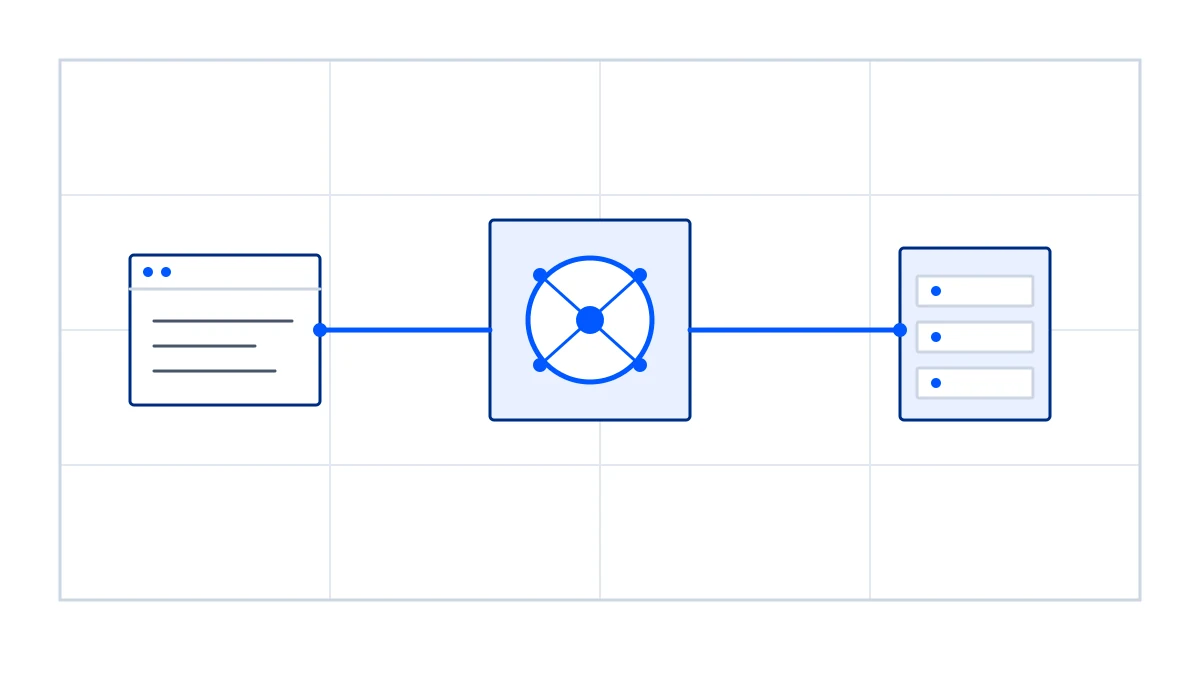
Record the current state
Identify the registrar, current nameservers, DNS editor, and host. Save the existing A, AAAA, CNAME, MX, TXT, and CAA records where present. Request the exact destination for the apex and www from the new host; an IP copied from a generic tutorial is unlikely to belong to your account.
Find out where domain email runs. MX and mail authentication records may belong to a separate provider. A web-only move should leave them in place. If a host proposes changing nameservers, remember that this moves control of the whole DNS zone. Copy every record that must survive before switching.
Choose records for the correct names
Cloudflare’s record guide describes A records for IPv4, AAAA for IPv6, and CNAME for another hostname. Follow the host’s instructions for your account: some platforms supply a hostname, others an address.
| Name | Check |
|---|---|
example.com |
Does the apex point to the new destination? |
www.example.com |
Does its own record or redirect work? |
Mail at @example.com |
Are MX and authentication records still correct? |
These names are examples. Do not add an AAAA record merely because IPv4 is configured; an incorrect IPv6 destination can send some visitors elsewhere. Avoid conflicting records at the same name. With a CDN proxy, distinguish the public DNS answer from the origin receiving traffic.
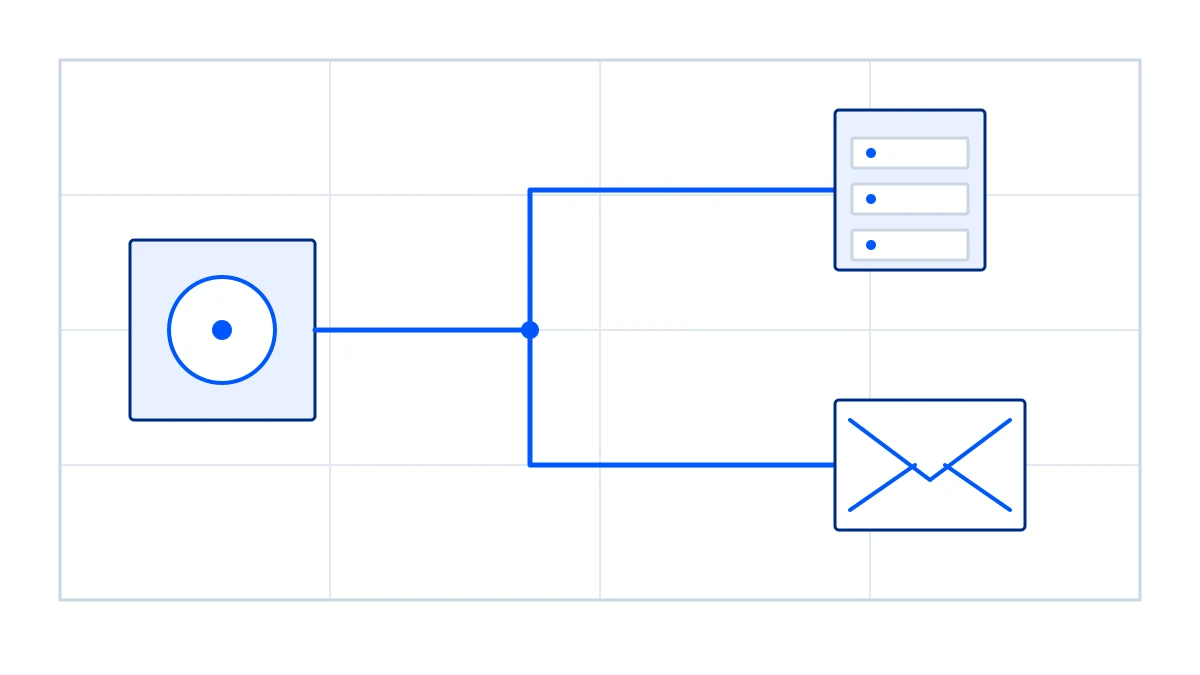
Change and verify
DNS TTL controls how long a resolver may cache a record. Lowering it in advance can speed a later change once older caches expire; it does not invalidate those caches immediately. See Cloudflare’s TTL reference.
- Preserve old values and confirm that the website backup can be restored.
- Prepare and preview the new host before switching public DNS, where possible.
- Change only the web records needed for the move.
- Resolve the domain from more than one network, then check apex,
www, and HTTPS. - Use logs or an environment-specific check to prove requests reach the new host.
For WordPress, open posts, sign in, inspect images, and test forms. During a WordPress migration, handle new writes before enabling the destination. DNS changes routing; it does not copy files or a database.
Diagnose failures before changing more settings
If the name does not resolve, inspect nameservers and authoritative records. If it resolves but serves the wrong site, inspect the virtual host, proxy, and redirects. If only HTTPS fails, check the certificate for both names. If web works but mail fails, compare MX and TXT records with the saved version.
For rollback, restore old web records and keep the old host available while caches expire. If the new site already accepted orders, comments, or accounts, switching DNS back alone loses access to those new writes. Reconcile data first, following the WordPress rollback checklist.