Hosting / Troubleshooting
Hosting storage full? Find the cause before deleting files
Check space, inodes, mail, and backups; clean safely and decide whether a hosting plan needs more capacity.
When hosting reports full storage, do not immediately delete logs, images, or backups. First identify which limit was reached: bytes, inode count, mailbox quota, database quota, or a plan-specific allowance. Locate what is growing, preserve a restorable copy, clean one category at a time, and measure again. Compare larger plans only if required data keeps growing.
Confirm the actual limit
Record the exact error, its start time, and the failing action: image upload, mail delivery, database writes, or a WordPress update. Bytes and inodes count different things. A vague “full” message does not identify which quota applies.
On cPanel, Disk Usage helps inspect usage by location. Hosts may count space differently; ask support when the panel number and file listing disagree. If you control a shell, df -h shows filesystem space and df -i shows inode use. Shared hosting may restrict shell access.
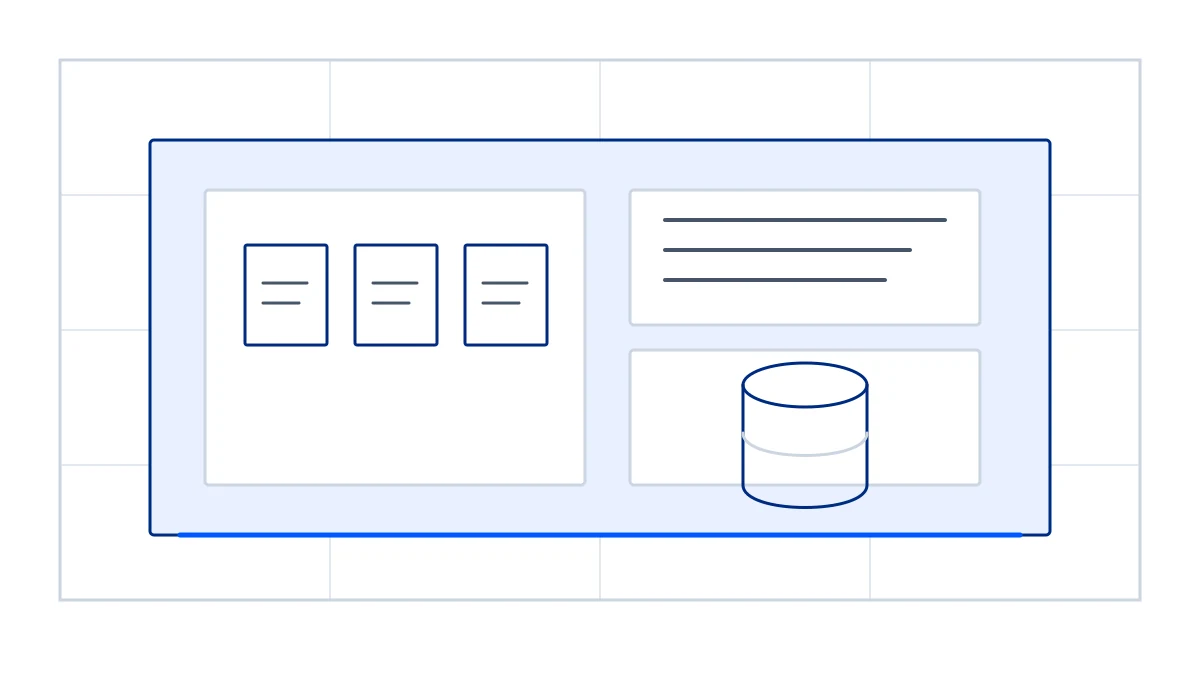
Locate growth instead of guessing
Inspect WordPress uploads, backups stored inside the account, cache, logs, temporary files, mailboxes, and staging copies. Sort by size and modification time. An old backup and a log that keeps growing need different fixes.
cPanel File Manager allows account file inspection and changes. Download or inspect only what is needed; preserve a copy before editing application files. Unexpected files or rapid growth can also signal an incident, especially if unfamiliar PHP files appear in upload directories.
| Space consumer | Question to answer |
|---|---|
| Media | Is each file still used by content or products? |
| Account backups | Is there an off-host copy that has been restore-tested? |
| Cache | Can its own plugin regenerate it safely? |
| Logs | Which underlying error creates the growth? Are logs needed for diagnosis? |
| Who manages mailboxes, trash, and retention? | |
| Database | Which tables grow, and is that business data? |
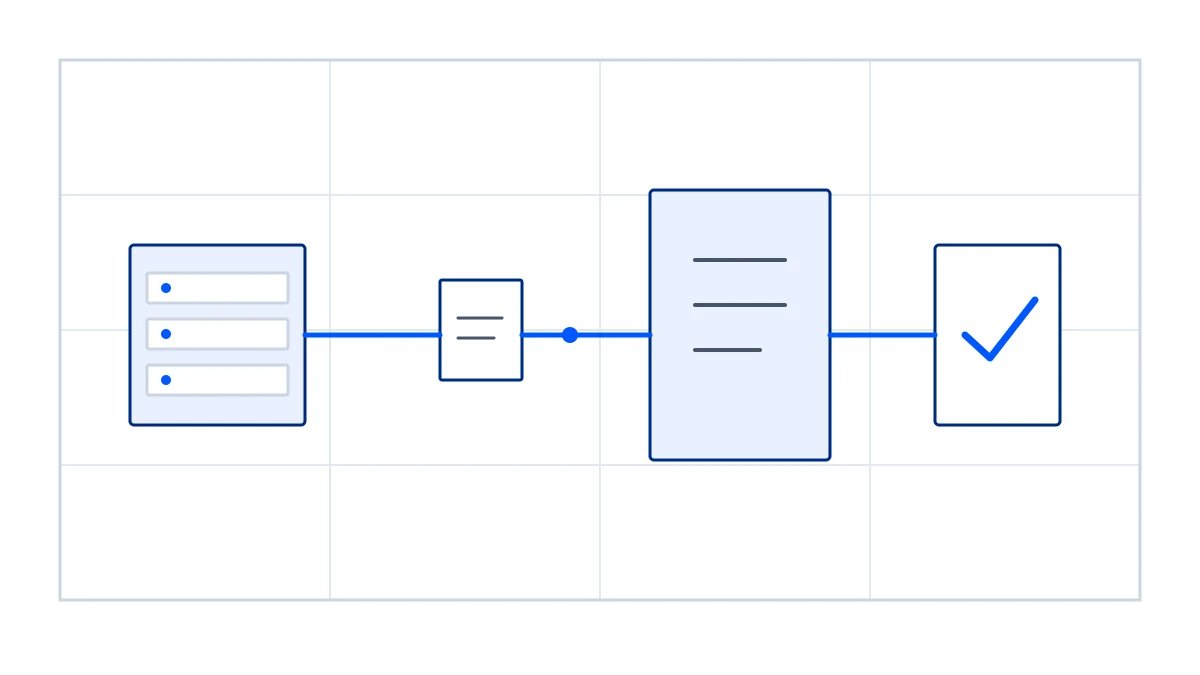
Clean in a safe order
- Make a complete file and database backup outside the nearly full account. Check that it can be opened or restored.
- Record each category’s usage. Mark only confirmed temporary files, regenerable caches, or duplicate copies stored elsewhere.
- Clean a small category using the application or control-panel tool; check the website and mail afterward.
- Fix the cause: repeated backup jobs, noisy errors, excessive generated images, or mail without retention rules.
- Measure bytes, inodes, and growth again after a normal activity cycle.
Do not delete WordPress core files, databases, uploads, or the only backup to gain space in a hurry. WordPress Site Health can assist diagnosis; it is not a backup. If the site is failing, keep evidence and a recovery path.
When is a larger plan justified?
An upgrade makes sense when needed data grows steadily, the real limit is capacity or inode count, and avoidable growth is already fixed. Compare the new quota, renewal price, backups, email, and upgrade rules using current provider terms. The hosting renewal worksheet helps calculate full cost.
If logs or cache grow without control, a bigger plan may only postpone the next failure. If the website is also slow, full storage may be one of several problems; use the VPS decision checklist to compare errors with resource evidence. For WordPress, test sign-in, a sample image upload, and older pages after cleanup. Monitor usage over several days before calling the issue resolved.